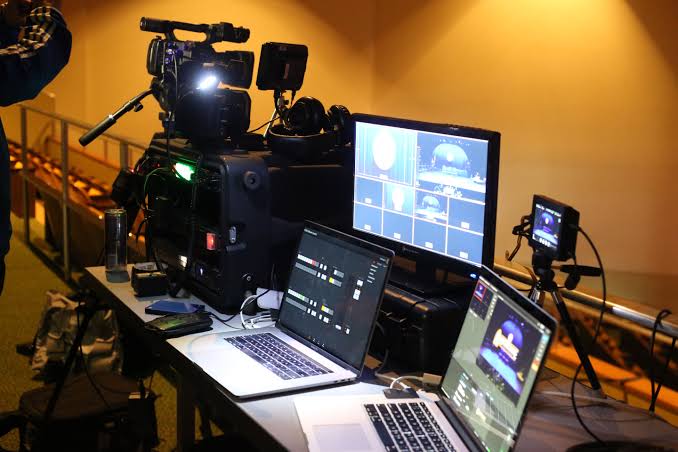
Many creators start live streaming with the simplest button available. They open a platform app, tap Go Live, and speak directly to the audience. That works for quick sessions, but external software streaming becomes more attractive when the stream needs overlays, scene switching, screen sharing, multiple cameras, better audio control, or a more polished production.
The choice is not about which method is always better. Built-in live tools are faster. External software gives more control. A beginner doing casual mobile lives may not need a full software setup. A creator running interviews, webinars, gaming sessions, tutorials, or branded streams may quickly feel limited by basic app tools.
For Top Livestream Sound of Text, this topic belongs in the Software category because the software layer decides how much control a creator has before the broadcast reaches the platform.
Built-In Live Tools Are Better For Speed
Built-in live tools are the native live features inside platforms such as YouTube, TikTok, Instagram, Facebook, or Twitch. They are designed to reduce setup time and help creators go live quickly.
Native Live Tools Reduce The First-Stream Barrier
The biggest strength of built-in live tools is simplicity. The creator does not need to build scenes, connect encoders, adjust bitrate, or manage a separate production dashboard. The platform usually handles most of the setup.
This is helpful for:
- casual creator updates
- mobile livestreams
- quick community check-ins
- simple Q&A sessions
- behind-the-scenes content
- live shopping previews
- travel streams
- short announcements
The creator can focus on the topic instead of the technical setup. For many beginners, that is enough.
Built-In Tools Are Easier On Mobile Creators
Mobile creators often need speed more than advanced production. If someone is streaming from a shop, event, kitchen, street, classroom, or travel location, opening a native app may be more practical than carrying a laptop and extra software.
Built-in tools also fit vertical live formats better. They are usually designed around the platform’s own audience behavior, comment layout, camera switching, filters, and notification system.
A creator who mostly streams from a phone may not gain much from external software if the content is informal and movement-based.
Simple Tools Can Still Look Good With Better Basics
A built-in live tool does not automatically mean poor quality. Good lighting, clear framing, stable internet, and clean audio can make a basic live session look professional enough.
Creators should not upgrade to software only because they feel pressured by other streamers. If the current live format works, the built-in tool may still be the better workflow.
External Software Streaming Is Better For Production Control
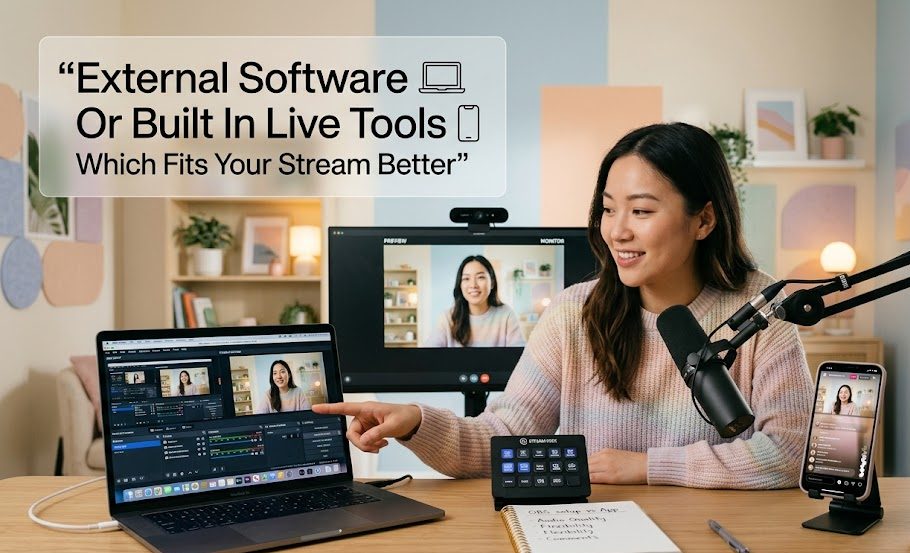
External streaming software sits between the creator’s equipment and the live platform. It helps manage cameras, microphones, screens, graphics, overlays, scenes, and stream settings before the final signal goes live.
YouTube explains that creators can stream through a webcam, mobile device, or encoder, and that using an encoder can help with screen sharing, gameplay broadcasting, external audio and video hardware, and advanced production with multiple cameras or microphones.
Software Gives Creators More Scene Control
The most obvious advantage of external software streaming is scene control. Instead of showing one camera view the whole time, the creator can prepare different layouts.
For example:
- intro screen
- main camera
- screen share
- camera plus slides
- product close-up
- guest layout
- break screen
- ending screen
OBS Studio describes features for real-time video and audio capture, scene creation from multiple sources, transitions, webcams, capture cards, browser windows, images, and text.
This makes software useful for streams that need structure, not only presence.
Software Handles Audio More Carefully
Audio is one of the biggest reasons creators move beyond built-in tools. A native app may offer basic microphone access, but external software can give more control over audio sources.
OBS Studio lists an audio mixer with per-source filters such as noise gate, noise suppression, and gain, along with VST plugin support.
That matters when a stream uses:
- external microphone
- game audio
- browser audio
- guest audio
- music bed
- sound effects
- multiple speakers
- separate camera audio
Without software, those sources can become hard to balance.
Software Makes Screen-Based Content Easier
For tutorials, webinars, gaming streams, software demos, chart reviews, design sessions, and online teaching, external software is often more practical than native live tools.
A creator can show the screen, switch to camera, add a title, resize windows, and control what viewers see. This makes the stream easier to follow.
Built-in tools may still support some screen sharing on certain platforms, but dedicated streaming software usually gives more flexibility.
The Comparison Depends On Stream Format
The best method depends on what the creator actually does live. A casual talk stream and a structured workshop should not use the same decision logic.
| Stream Type | Better Fit | Reason |
|---|---|---|
| Quick phone update | Built-in live tools | Faster and simpler |
| Casual creator chat | Built-in live tools | Low setup pressure |
| Gaming stream | External software streaming | Better screen, audio, and overlay control |
| Webinar or class | External software streaming | Easier slides, scenes, and microphone control |
| Product demo | External software streaming | Better camera switching and close-up views |
| Travel stream | Built-in live tools | More portable |
| Interview stream | External software streaming | Better layout and guest control |
| Branded event | External software streaming | More polished production |
This is why the argument should not be “software is better” or “built-in is enough.” The real question is what kind of live experience the audience expects.
External Software Needs More Setup Time
The extra control comes with extra work. External streaming software is not difficult forever, but it can feel intimidating at first.
Creators Must Understand Encoder Settings
A streaming encoder converts video into a digital format for the platform. YouTube explains that some encoders are software apps on a computer while others are standalone hardware devices.
That means creators may need to understand:
- resolution
- frame rate
- bitrate
- stream key
- server URL
- audio input
- camera input
- encoder settings
- stream health
YouTube also notes that creators using Live Control Room specify resolution, frame rate, and bitrate in the encoder, and recommends testing upload bitrate before going live.
This is not impossible, but it is more work than tapping Go Live.
Stream Keys Must Be Handled Carefully
External software often connects to a platform using a server URL and stream key. YouTube’s encoder instructions say creators can copy the stream URL and stream key into the encoder settings before starting the stream.
That stream key should be treated carefully because it authorizes the software to send a live stream to the account. A creator should not paste it into random tools, screenshots, or public documents.
This is one reason built-in live tools feel safer for beginners. There are fewer settings to expose or misconfigure.
Testing Becomes More Important
With external software, there are more moving parts. A camera can fail. A microphone source can be muted. A scene can show the wrong window. A bitrate can be too high for the internet connection.
YouTube recommends testing before starting a live stream, including audio and movement similar to what will happen during the stream.
A short test session can prevent a very public mistake.
Built-In Tools Have Limits That Show Up Later
Built-in live tools are simple, but their limits become clear when a creator wants the stream to look more organized.
Layout Options Are Usually Basic
A native live app may not give enough control over layout. The creator may not be able to prepare a proper intro screen, switch between planned scenes, place a clean lower third, or show multiple sources neatly.
For a casual live, that may not matter. For teaching, gaming, product demos, or brand events, it can make the stream feel less prepared.
Audio Control Can Feel Too Narrow
Native tools usually focus on one main input. That is fine for speaking directly to the camera, but not ideal for a stream with several audio sources.
A creator may struggle when they need to manage:
- microphone volume
- music volume
- guest voice
- game audio
- alert sounds
- browser audio
- background noise
External software gives more control, but only if the creator is willing to set it up properly.
Branding Is Harder To Maintain
Branded streams often need visual consistency. This may include logo placement, intro screens, colors, topic labels, guest names, call-to-action panels, and ending slides.
Built-in live tools may not support that level of control. External software makes branding easier because the creator can prepare scenes before the stream begins.
The Better Choice For Beginners Is Not Always The Simplest One
A beginner should not always avoid external software. The better question is whether the stream format already needs features that built-in tools cannot provide.
Beginners Should Use Built-In Tools When The Stream Is Casual
Built-in live tools are usually enough when the creator only needs:
- face camera
- basic comments
- quick updates
- mobile access
- low-pressure sessions
- direct interaction
- minimal gear
This is the easier starting point and can help creators build confidence.
Beginners Should Use External Software When The Format Requires Structure
External software is worth learning earlier if the creator wants to stream:
- gameplay
- slides
- tutorials
- interviews
- product demos
- desktop walkthroughs
- virtual events
- multi-camera sessions
In these cases, software is not just a fancy upgrade. It supports the actual format.
A Practical Decision Table
| Question | Choose Built-In Live Tools If | Choose External Software Streaming If |
|---|---|---|
| How fast do you need to go live? | You need to start quickly | You can prepare before the session |
| How many sources do you use? | One camera and one mic | Multiple cameras, mics, screens, or guests |
| Do you need overlays? | Not really | Yes, for branding or clarity |
| Is the stream mobile-first? | Yes | No, it is desk or studio-based |
| Is audio simple? | One voice only | Multiple audio sources |
| Is the stream structured? | Mostly casual | Planned segments or production flow |
| Do you need screen sharing? | Rarely | Often |
| Are you comfortable testing settings? | Not yet | Yes, or willing to learn |
This table keeps the choice practical. Creators should not choose software because it sounds professional. They should choose it because the stream needs more control.
External Software Wins When The Stream Has Moving Parts
External software streaming becomes the stronger choice when a broadcast has more than one thing happening. A creator switching between camera, slides, screen share, guest video, product close-up, and chat overlays needs production control.
OBS supports features such as hotkeys for switching scenes, starting or stopping streams and recordings, muting audio sources, and using Studio Mode to preview scenes before viewers see them.
That kind of control can make a live session feel smoother. The creator is not trapped in one camera view or one basic layout.
Built-In Tools Win When Presence Matters More Than Production
Not every live stream should feel like a studio show. Some live sessions work because they feel immediate, human, and low-pressure.
Built-in tools are often better when:
- the creator wants casual presence
- the audience expects raw interaction
- the stream happens while moving
- the setup needs to stay light
- the goal is conversation, not production
- the platform’s native live culture matters
A creator doing a quick TikTok Live from a shop floor, Instagram Live from an event, or casual YouTube mobile stream may not need external software at all.
The Smart Choice Is Based On Control, Not Ego
The best live setup is the one that fits the job. Built-in live tools are faster, lighter, and easier for casual streams. External software gives more control over scenes, audio, overlays, screen sharing, cameras, and production flow.
Creators should use built-in tools when the stream is simple and immediate. They should move to external software when the content needs structure, better audio handling, multiple sources, or a more branded presentation.
The point is not to make every stream look complicated. The point is to choose the software layer that helps the audience understand, hear, and follow the live session more easily.
Elodie Marceau is a former audiovisual technician who worked with small studios, cultural organizations, and independent production teams. She has practical experience with cameras, microphones, mixers, lighting equipment, capture cards, encoders, and livestream software. Her reviews focus on how equipment performs in realistic working environments, including small rooms, temporary studios, mobile setups, and limited-budget productions.

1 comment
Comments are closed.