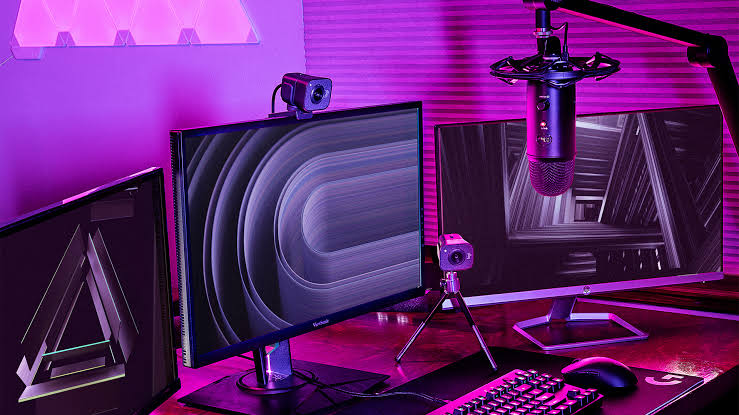
Many people search for streaming mics compatible with Xbox after realizing that console audio does not work like a normal PC setup. A microphone that works instantly on a laptop may not work the same way on Xbox. A USB mic may look professional on a desk, but the console may still expect a headset-style connection, an Xbox-compatible wireless headset, or a PC capture setup.
This is where beginners often buy the wrong gear. They focus on microphone quality first, then discover too late that the connection path does not match how Xbox handles voice chat, game chat, party chat, or livestream audio.
For Top Livestream Sound of Text, this topic belongs in the Microphones category because good voice quality is important, but compatibility comes first. A clear microphone is useless if Xbox cannot detect it during the stream.
Streaming Mics Compatible With Xbox Start With The Right Connection
The first rule is simple: do not judge a mic only by sound quality, price, or “streaming” branding. Judge it by how it connects to Xbox.
The 3.5mm Controller Route Is The Safest Basic Option
For many Xbox users, the safest basic route is still a headset with a 3.5mm connection. Microsoft’s Xbox Wireless Controller page says users can plug in any compatible headset with the 3.5mm stereo headset jack, and the Xbox Stereo Headset page says it connects directly to the Xbox Wireless Controller through the 3.5mm audio jack.
This matters because many Xbox streaming problems are not caused by the microphone capsule itself. They happen because the mic is not connected through a route Xbox expects.
A wired 3.5mm headset is usually the least confusing choice for:
- direct Xbox streaming
- party chat
- game chat
- beginner setups
- no-PC streaming
- low-budget streaming
- quick troubleshooting
It may not sound like a studio microphone, but it usually gives beginners a clearer path than guessing with random USB desk mics.
Xbox Wireless Headsets Need Real Xbox Support
Wireless can work well, but the headset needs proper Xbox support. The Xbox Wireless Headset is listed as compatible with Xbox Series X|S, Xbox One, Windows PCs, and mobile devices with Bluetooth, and Microsoft describes it as supporting direct pairing to console with dual microphones, auto-mute, voice isolation, and mic monitoring through the Xbox Accessories app.
The important detail is that “wireless” alone is not enough. Some Bluetooth gaming headsets may work with phones or PCs but not connect to Xbox voice chat in the way users expect. Xbox-compatible wireless support should be stated clearly by the product.
Before buying, check for phrases such as:
- compatible with Xbox Series X|S
- compatible with Xbox One
- Xbox Wireless
- Designed for Xbox
- works with Xbox controller
- 3.5mm Xbox controller support
Avoid assuming that every Bluetooth headset or USB wireless dongle will behave like it does on PC.
USB Desk Mics Are The Most Common Buying Trap
A USB desk mic can sound better than a headset mic on PC, but direct Xbox use is where the confusion starts. Xbox support pages and product pages consistently point ordinary console users toward compatible headsets, 3.5mm controller connections, Xbox Wireless headsets, and Xbox live streaming settings rather than a universal plug-any-USB-mic workflow.
That does not mean a desk mic is useless. It means the setup may need a PC, capture card, streaming software, or audio routing. For a direct console stream, a simple headset mic is often easier than forcing a standalone USB mic into the setup.
Step 1 Check Whether The Mic Is A Headset Mic Or A Standalone Mic
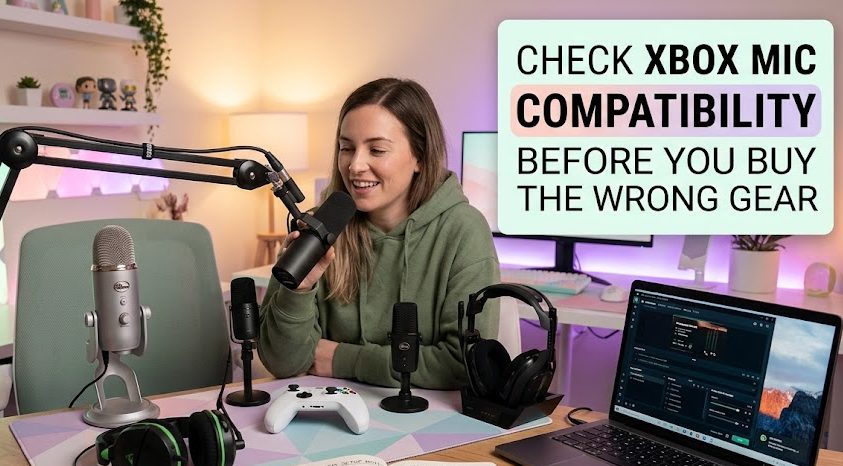
The first compatibility check is the microphone type. Xbox-friendly mics usually fall into two broad groups: headset microphones and standalone streaming microphones.
Headset Mics Are Easier For Direct Xbox Streaming
A headset mic is the simplest option when the stream happens directly from Xbox. It handles voice input and game audio in one device, usually through the controller or an Xbox-compatible wireless connection.
Choose this route if you want:
- fewer cables
- simple party chat
- direct Xbox broadcasting
- easy mute control
- less desk clutter
- lower setup risk
This setup is not always the highest-quality audio path, but it is usually the most practical one for beginners. A decent headset mic with good positioning can sound better than an expensive mic connected the wrong way.
Standalone Mics Usually Need A Bigger Setup
A standalone mic is the kind of microphone many streamers imagine: a desk mic on a stand, boom arm, or shock mount. These mics often connect through USB or XLR.
This can be better for voice quality, but it is usually more suitable when Xbox gameplay is routed through a PC streaming setup.
A standalone mic makes more sense if you use:
- capture card
- OBS or similar streaming software
- PC audio mixer
- USB audio interface
- XLR interface
- separate headphones
- advanced overlays and alerts
In this setup, the Xbox provides gameplay video and audio, while the PC handles the microphone and stream production.
Step 2 Match The Mic To The Way You Stream
A microphone choice should follow the streaming method. Direct console streaming and PC capture streaming are not the same workflow.
Direct Streaming From Xbox Needs Simplicity
Xbox support says users can start streaming from the console by opening the guide, going to Capture & share, and selecting Live streaming. Twitch also describes Xbox broadcasting through the Xbox button, Capture & Share, and Live streaming prompts.
For this direct route, the easiest mic choice is usually:
- wired 3.5mm headset
- official Xbox headset
- Xbox-compatible wireless headset
- headset clearly marked for Xbox Series X|S or Xbox One
This route is best for people who do not want to manage a capture card, PC software, audio mixer, or complicated routing.
Capture Card Streaming Gives More Mic Freedom
If you stream Xbox gameplay through a capture card and PC, the microphone does not need to connect directly to the Xbox. It can connect to the computer instead.
This is where USB desk mics and XLR microphones become more useful. The PC becomes the streaming control center, so the mic can be selected inside OBS, Streamlabs, or another broadcasting app.
This route is better for:
- higher voice quality
- overlays
- alerts
- separate audio tracks
- podcast-style voice
- multi-source production
- camera and scene control
But it is also more complex. The creator must check capture card audio, game audio, microphone input, monitoring, and delay.
Party Chat Changes The Setup
Party chat can complicate audio. A mic may sound fine to the stream but not work inside party chat, or party chat may work for friends but not appear correctly in the broadcast.
Before going live, test:
- whether friends can hear you
- whether stream viewers can hear you
- whether game chat is included
- whether party chat permissions allow broadcast audio
- whether the headset mute button is off
- whether the controller detects the mic
This test matters more than the product box. A mic is only useful if it works in the exact chat situation you use.
Step 3 Check The Product Page Before Buying
Many product listings use broad words like “gaming,” “streaming,” “USB,” or “multi-platform.” Those words are not enough.
Xbox Compatibility Must Be Stated Clearly
Look for Xbox compatibility in the system requirements, product title, or official specs. Microsoft’s Xbox Stereo Headset lists use with Xbox Series X|S, Xbox One, and Windows devices with a 3.5mm jack, while the Xbox Wireless Headset lists compatibility with Xbox Series X|S, Xbox One, Windows PCs, and mobile devices.
That is the level of clarity to look for. If a microphone listing only says “works with PC, Mac, PS5, and Switch,” do not assume Xbox support unless it specifically says so.
The Connection Type Should Match Your Console Setup
Before checkout, confirm one of these paths:
- 3.5mm headset into Xbox controller
- Xbox Wireless headset paired to console
- licensed Xbox wireless headset
- PC-connected USB mic for capture card streaming
- XLR mic connected to a PC audio interface
- controller-compatible headset adapter if needed
If the product only has USB and you plan to plug it directly into the Xbox as a main microphone, pause before buying. Check the manufacturer’s Xbox support notes first.
Mute Controls And Monitoring Still Matter
Compatibility is not only about whether the mic turns on. Streamers also need control.
A useful Xbox mic setup should make it easy to:
- mute quickly
- hear game audio
- hear party chat
- adjust voice level
- avoid echo
- avoid controller cable noise
- test monitoring before going live
The Xbox Wireless Headset, for example, includes controls for mute, volume, game and chat balance, and mic monitoring through the Xbox Accessories app.
These small controls matter during a live stream because audio problems need quick fixes.
Step 4 Fix The Most Common Xbox Mic Problems
A compatible mic can still fail if the settings, controller, or chat permissions are wrong.
The Mic Is Plugged In But Not Detected
Start with the simple checks:
- unplug and reconnect the headset
- check the 3.5mm jack fully enters the controller
- update the controller if needed
- restart the console
- test with another controller
- check the headset mute switch
- check whether the headset works on another device
If the headset works elsewhere but not on Xbox, the issue may be controller port, adapter, privacy setting, or console audio configuration.
The Stream Can Hear Game Audio But Not Voice
This usually means the broadcast setup is receiving game audio but not microphone input. Check the live streaming menu, party settings, and headset mic status before going live.
Xbox also has a support page for live streaming problems that points users toward privacy settings when live streaming does not work correctly.
For streamers, privacy and communication settings should be checked early, not after the broadcast begins.
Friends Hear You But The Stream Does Not
This can happen when party chat, game chat, and broadcast audio are separated. The mic may be working inside the party, while the stream does not include that voice source.
Test with a private or short stream before the main session. Ask one person to watch the stream and confirm:
- your voice is audible
- party chat is included if intended
- game sound is not overpowering voice
- there is no echo
- there is no buzzing or cable noise
A five-minute test prevents a full stream with broken audio.
Step 5 Choose The Right Mic Route For Your Goal
The best microphone choice depends on how serious the stream setup is.
1. Simple Xbox Streamer
Choose a wired 3.5mm headset or Xbox-compatible wireless headset. This is the cleanest route for beginners who stream directly from the console.
2. Budget Creator
Use a reliable wired headset with a boom mic. Spend extra attention on mic placement, room noise, and volume balance before buying more gear.
3. Cleaner Voice Without A PC
Use an Xbox-compatible wireless or wired headset with better mic controls. Look for mute control, voice isolation, and chat balance.
4. Serious Streamer With A PC
Use a capture card and connect a USB or XLR microphone to the PC. This gives more control over voice quality, filters, overlays, and audio mixing.
5. Creator Who Already Bought A USB Mic
Do not throw it away immediately. Use it with a PC capture setup if direct Xbox use does not work. The mic may still be useful, just not in the way originally expected.
Elodie Marceau is a former audiovisual technician who worked with small studios, cultural organizations, and independent production teams. She has practical experience with cameras, microphones, mixers, lighting equipment, capture cards, encoders, and livestream software. Her reviews focus on how equipment performs in realistic working environments, including small rooms, temporary studios, mobile setups, and limited-budget productions.
1 comment
Comments are closed.