The default OBS Studio layout can look a bit like a college presentation screen that forgot to graduate. OBS Studio plugins change that quickly, adding polished transitions, dynamic effects, and smarter audio control without replacing your entire streaming workflow. The trick is knowing which additions actually improve production value instead of turning your stream into a fireworks display.
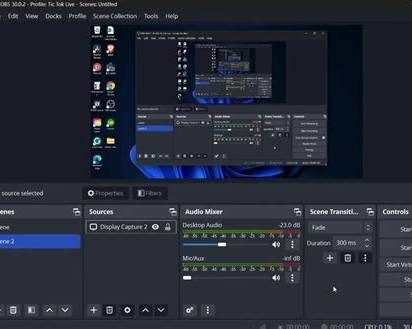
OBS itself confirms that plugins can add new sources, filters, and features, while its built-in transition system already supports options such as Swipe, Slide, Fade to Color, and Luma Wipe.
1. OBS Studio Plugins That Upgrade Scene Transition Effects and Visual Overlays
The fastest way to make a stream feel more expensive isn’t adding twenty animated widgets. It’s making scene changes feel intentional.
Stinger Transitions Make Scene Changes Feel Like Broadcast TV
A Stinger transition places a video animation over the switch between scenes. OBS supports both traditional cut-point Stingers and newer Track Matte workflows.
That gives you room for transitions such as:
- A logo animation when starting gameplay
- A short wipe into a BRB screen
- A branded reveal before switching to a webcam scene
- A transparent animation that hides the actual scene change
The important part is timing. A two-second explosion every time you change scenes gets old fast. A clean 300–800 ms transition usually feels much more natural for regular streaming.
Move Transition Is Better for Subtle Motion
If your goal is a polished rather than flashy look, Move Transition is worth considering. The community plugin can animate sources into new positions during scene changes, allowing webcam frames, alerts, or graphics to slide and reposition smoothly.
That’s useful when you want a modern broadcast layout without covering the screen in effects.
StreamFX Goes Further With Blur and Advanced Effects
StreamFX expands OBS with effects including blur, masking, 3D transforms, and custom shaders.
For example, you could blur a busy webcam background while keeping your face sharp, or use masking to create a more deliberate visual hierarchy.
The lesson is simple: use effects to direct attention, not merely to prove that you installed a plugin.
2. Audio Ducking Filter and Free Broadcast Software Tricks That Actually Matter
A stream can look incredible and still feel cheap when the game suddenly screams over your voice. This is where OBS’s native audio tools can be more valuable than another flashy add-on.
Audio Ducking Keeps Your Voice in Front
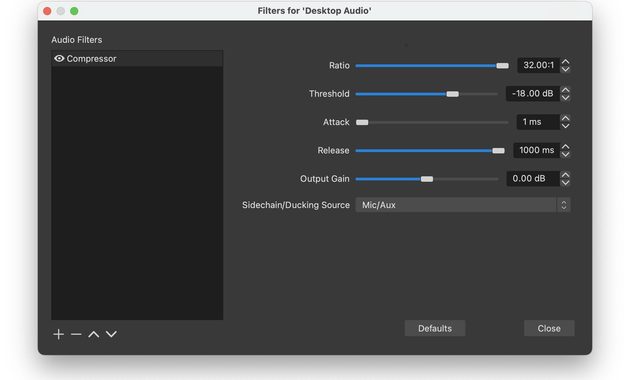
OBS includes Compressor functionality that can perform ducking, reducing one audio source when another becomes active. Its official filter documentation specifically lists ducking as a Compressor use case.
A common setup is:
- Select your game or desktop audio.
- Open Filters.
- Add Compressor.
- Set your microphone as the sidechain/ducking source.
- Adjust threshold, ratio, attack, and release.
- Test while speaking normally.
The goal isn’t to make the game disappear. It should simply step backward when you speak.
A practical starting point is a moderate ratio and a release time that lets the game return smoothly instead of jumping up and down between sentences.
Noise Suppression Is Already Built Into OBS
Before downloading an audio plugin, check what OBS already provides.
Its Filters Guide includes Noise Suppression, Noise Gate, Expander, Compressor, Limiter, and VST support.
That makes OBS surprisingly capable as free broadcast software. You may only need an additional plugin when you have a specific production problem that the native tools can’t solve.
Don’t Install Plugins Just Because They Look Cool
Every plugin adds another compatibility variable.
OBS warns that plugins can fail when they’re designed for a different operating system, CPU architecture, or OBS version.
Before installing one, check:
- Current OBS compatibility
- Windows, macOS, or Linux support
- 64-bit architecture requirements
- Last release date
- Whether the developer still maintains it
- Whether the feature already exists natively
This matters more than the plugin’s download count.
If you’re comparing a plugin-heavy workflow with simpler streaming software, this comparison of external streaming software and built-in live tools gives you a useful starting point.
3. How to Build a Premium OBS Setup Without Plugin Overload
The expensive look isn’t created by installing everything. It’s created by making a few elements work together consistently.
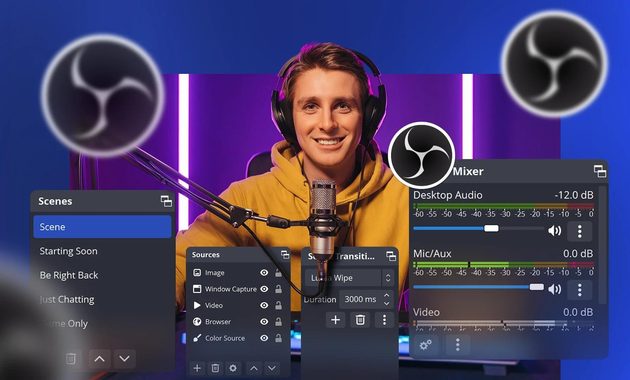
Start With Three Core Scenes
A practical setup might contain:
Starting Soon
Simple branding, countdown and background music.
Main Stream
Game or content source, webcam and restrained visual elements.
BRB
A clean holding screen with readable information.
You don’t need 14 scenes unless your content genuinely requires them.
Give Each Scene One Visual Job
This is where visual overlays become useful.
Your webcam frame can establish identity. Your alert area can communicate events. Your gameplay scene should prioritize the game.
When everything moves simultaneously, nothing feels important.
Use Scene Transitions as Punctuation
OBS already lets you configure different transitions and durations, including Quick Transitions in Studio Mode.
A good hierarchy is:
- Cut: fast gameplay changes
- Fade: calm scene changes
- Stinger: major branded moments
- Luma Wipe: occasional stylistic transition
- Move Transition: subtle layout movement
That approach makes the production feel deliberate.
Test Performance Before Going Live
A beautiful plugin is useless if it introduces rendering problems.
Do a private recording or test stream and watch:
- CPU usage
- GPU usage
- dropped frames
- audio delay
- transition smoothness
- browser-source loading
- scene-switching latency
This is particularly important with shader-heavy effects. StreamFX, for example, can add advanced effects and custom shaders, but those features naturally deserve more performance testing than a basic scene transition.
The best OBS Studio plugins are therefore the ones you barely notice. Viewers notice the result instead: cleaner scene changes, clearer speech, better visual hierarchy and fewer awkward pauses.
Q&A
Do OBS Studio plugins slow down a stream?
They can. The impact depends on the plugin, effect complexity, source count, and your hardware. Test demanding effects before using them during a real broadcast.
Are OBS plugins safe to install from anywhere?
Not automatically. Prefer established project pages, verify compatibility, and avoid random download mirrors. OBS itself recommends checking plugin documentation and compatibility before installation.
Do I actually need plugins to make OBS look professional?
No. OBS already includes transitions, filters, Studio Mode and extensive source controls. Plugins are most useful when they solve a specific production limitation rather than simply adding more decoration.
Elodie Marceau is a former audiovisual technician who worked with small studios, cultural organizations, and independent production teams. She has practical experience with cameras, microphones, mixers, lighting equipment, capture cards, encoders, and livestream software. Her reviews focus on how equipment performs in realistic working environments, including small rooms, temporary studios, mobile setups, and limited-budget productions.